


AI Replies helps your agents draft responses faster and provide accurate, relevant answers based on your Knowledge Base. Agents can review and edit AI-generated drafts before sending them to customers.
Configuring AI Replies
Before using AI Replies you need to configure AI Agent. Learn how to create AI Agents in this Guide.
Once you've created an AI Agent, follow these steps to enable AI Replies.
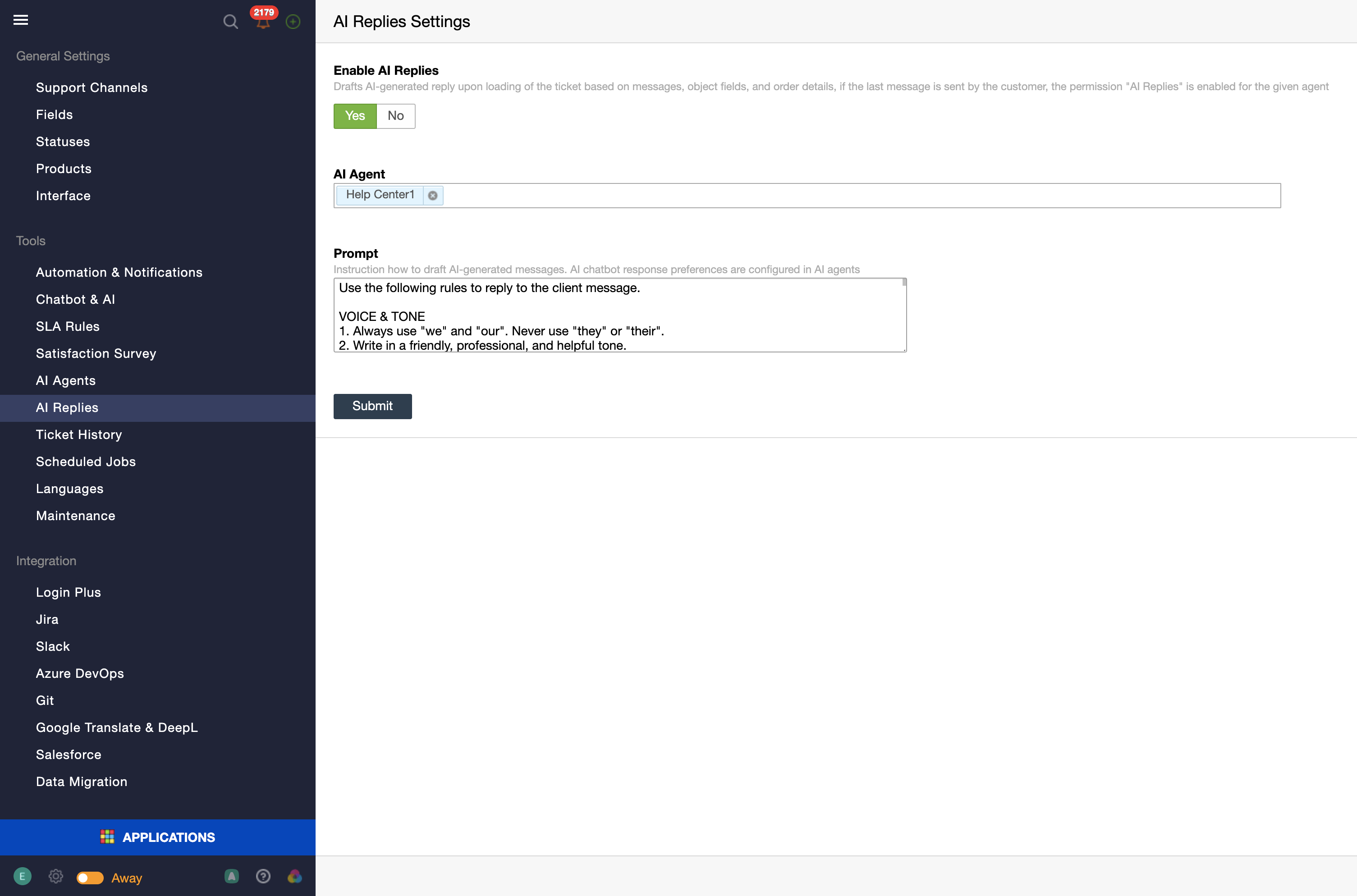
- Open AI Replies settings. Go to Administration → AI Replies.
- Enable AI Replies. Turn the feature on and select the AI Agent you want to use.
It's safe to use an AI Agent trained on private articles because agents can review and edit every draft before sending it to a customer.
- Prompt. We recommend keeping the default prompt or making only minor adjustments. Prompts that are too long or overly restrictive may prevent AI Replies from generating responses. If you need help customizing the prompt, contact Support.
- Save your settings. Click Submit.
Configuring Permissions
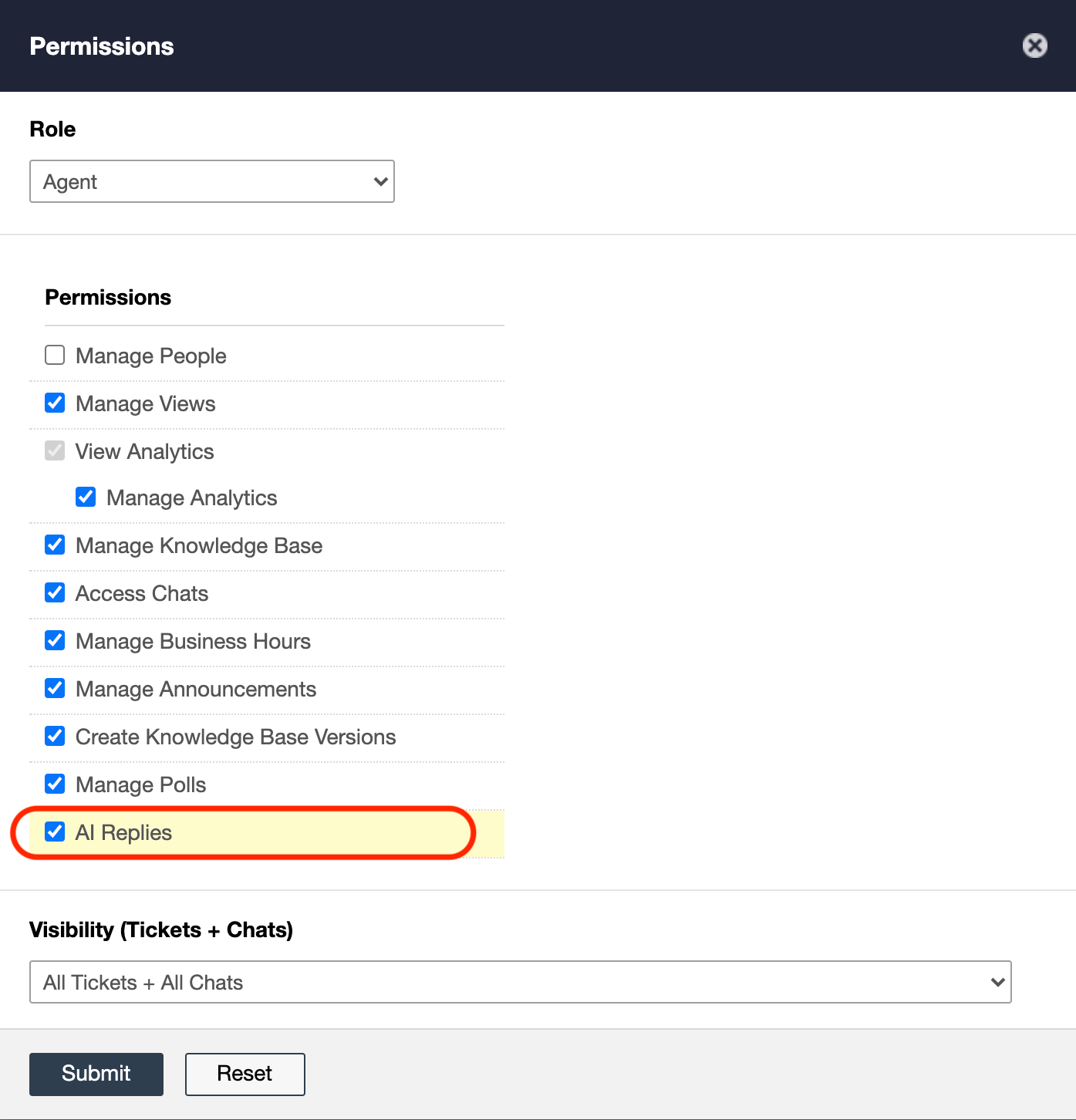
Enabling AI Replies doesn't automatically make the feature available to you or your team. You must grant the appropriate permissions separately.
Go to the relevant user or team permissions and enable the permissions required to access AI Replies.
Using AI Replies
Once the necessary permissions have been granted:
- Open a ticket and start composing a reply.
- Click the AI button in the text editor toolbar to generate a draft.
- Review the generated response and edit it as needed.
- Click Submit to send the reply.
