


AI Summaries help agents quickly understand a ticket without reading the entire conversation. This is especially useful for long conversations, tickets with multiple replies, or when an agent needs to pick up a ticket handled by someone else.

How It Works
- Open a ticket.
- Click the AI Summary button near the ticket header.
- The AI analyzes the conversation and generates a concise summary.

The summary highlights different information depending on the ticket status:
- Open tickets: The main issue, steps already taken, and recommended next steps.
- Closed tickets: The original issue and how it was resolved.
Summary Format
Summaries appear in a block just below the ticket title and consist of a short bulleted list, typically containing one to five points.
Note: If new messages have been added since the last summary was generated, a warning appears with a Regenerate button. Click it to generate an updated summary that includes the latest messages.

AI Text Tools
AI Text Tools help agents write clear, professional replies faster. While composing a ticket response, agents can use AI to refine their wording, adjust the tone, or translate text into another language.
AI Text Tools are available in Tickets only.
What You Can Do
- Rephrase: Rewrite text to make it sound more natural or professional.
- Shorten: Make a reply more concise while preserving its key points.
- Improve: Correct grammar and improve tone, clarity, and readability.
- Translate: Translate text into another language.
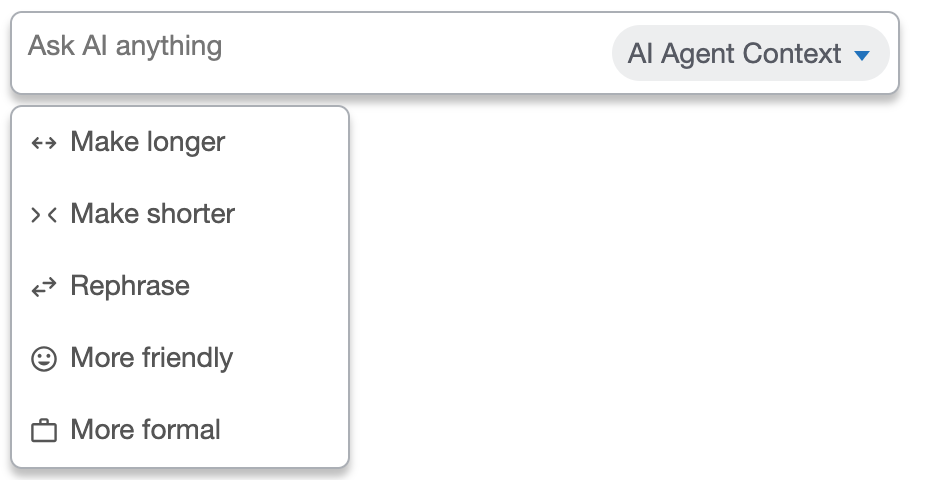
How to Use AI Text Tools
- Open a ticket and start composing a reply.
- Select the text you want to improve.
- Click the AI Text Tools icon in the editor toolbar.
- Choose the action you want to apply.
- Review the AI-generated suggestion and apply it or discard it.