


AI Ticket History helps administrators improve their Knowledge Base by analyzing past closed support tickets and suggesting new articles or updates to existing ones. Instead of manually reviewing large numbers of tickets to identify knowledge gaps, you can use AI to find recurring questions and highlight content that may need improvement.
Navigate to Administration → Ticket History to access this feature.
How AI Ticket History Works
Once enabled, AI Ticket History runs automatically on your chosen schedule: daily, weekly, or monthly. Each run:
- Analyzes your closed support tickets.
- Identifies recurring topics and customer questions.
- Compares these findings with your existing Knowledge Base.
- Generates suggestions to create new articles or update existing ones.
Ticket History works on closed support tickets only. The more closed tickets you have, the more useful and accurate the suggestions will be.
Understanding Suggestions
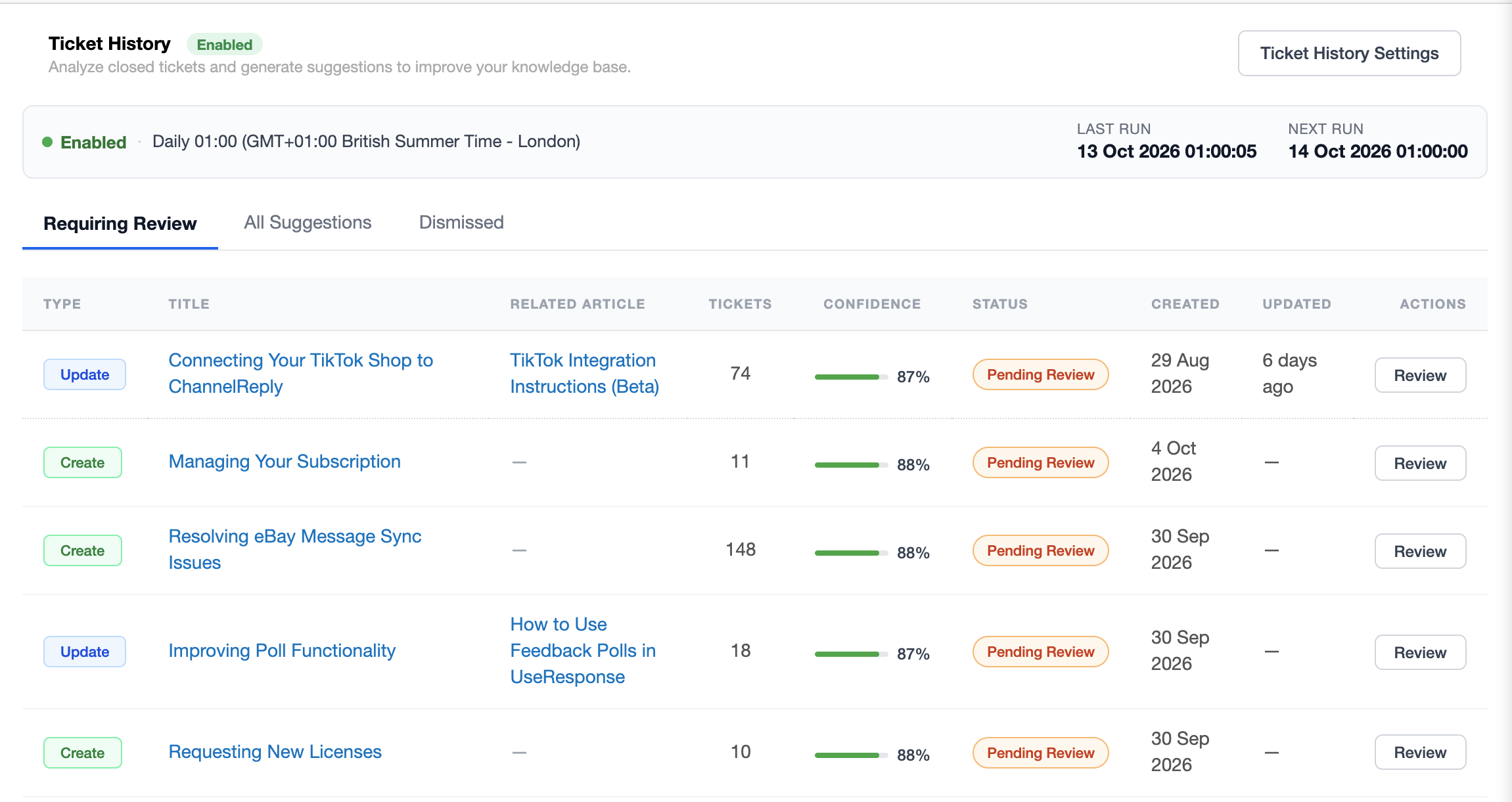
All generated suggestions appear on the Ticket History page, organized into three views:
- Pending Review: New suggestions waiting for your decision.
- All Suggestions: All suggestions, regardless of their current status.
- Dismissed: Suggestions you have rejected.
Suggestion Types
Create: A topic frequently appears in support tickets, but your Knowledge Base has no article covering it. AI suggests creating a new article.
Update: An existing article covers the topic, but recent tickets suggest that its content may be incomplete or outdated. AI suggests updating the article.
Reviewing Suggestions
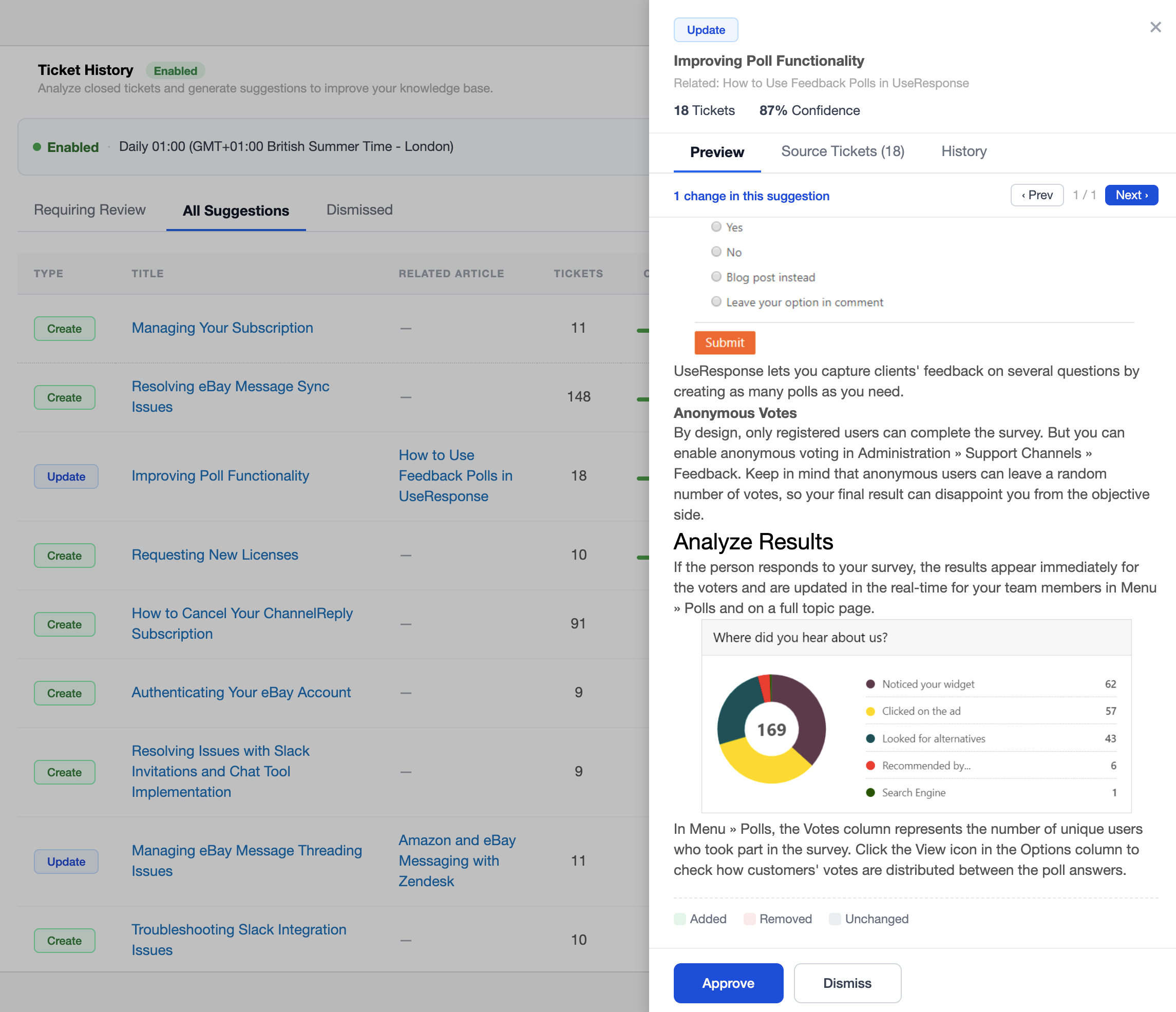
You can review each suggestion before deciding whether to apply it.
- Open the Review tab to read the proposed article content and see the suggested changes.
- For Update suggestions, added content is highlighted in green and removed content in red.
- Use the Previous and Next buttons to navigate between individual changes within the suggestion.
- Open the Source Tickets tab to review the original tickets used to generate the suggestion.
For each suggestion, you have two options:
- Approve: Create the suggested article or apply the proposed changes to an existing article.
- Dismiss: Reject the suggestion. It will then appear in the Dismissed tab.
Confidence Score
Each suggestion includes a confidence score, displayed as a percentage. It indicates how consistently the source tickets match one another in terms of topic and content. A higher score generally means the tickets share a clearer, more consistent pattern.
Use the score as a guide when reviewing suggestions, rather than as a guarantee that the proposed content is correct.
| Score | What It Means |
|---|---|
| 85% and above | High confidence. The tickets show a clear pattern around the same topic. |
| 75%–84% | Medium confidence. Review the suggestion and its source tickets carefully before approving. |
| Below 75% | Lower confidence. The tickets may be less similar, so check the source tickets closely before deciding. |
Configuring AI Ticket History
To configure AI Ticket History, click Ticket History Settings in the top-right corner of the page.
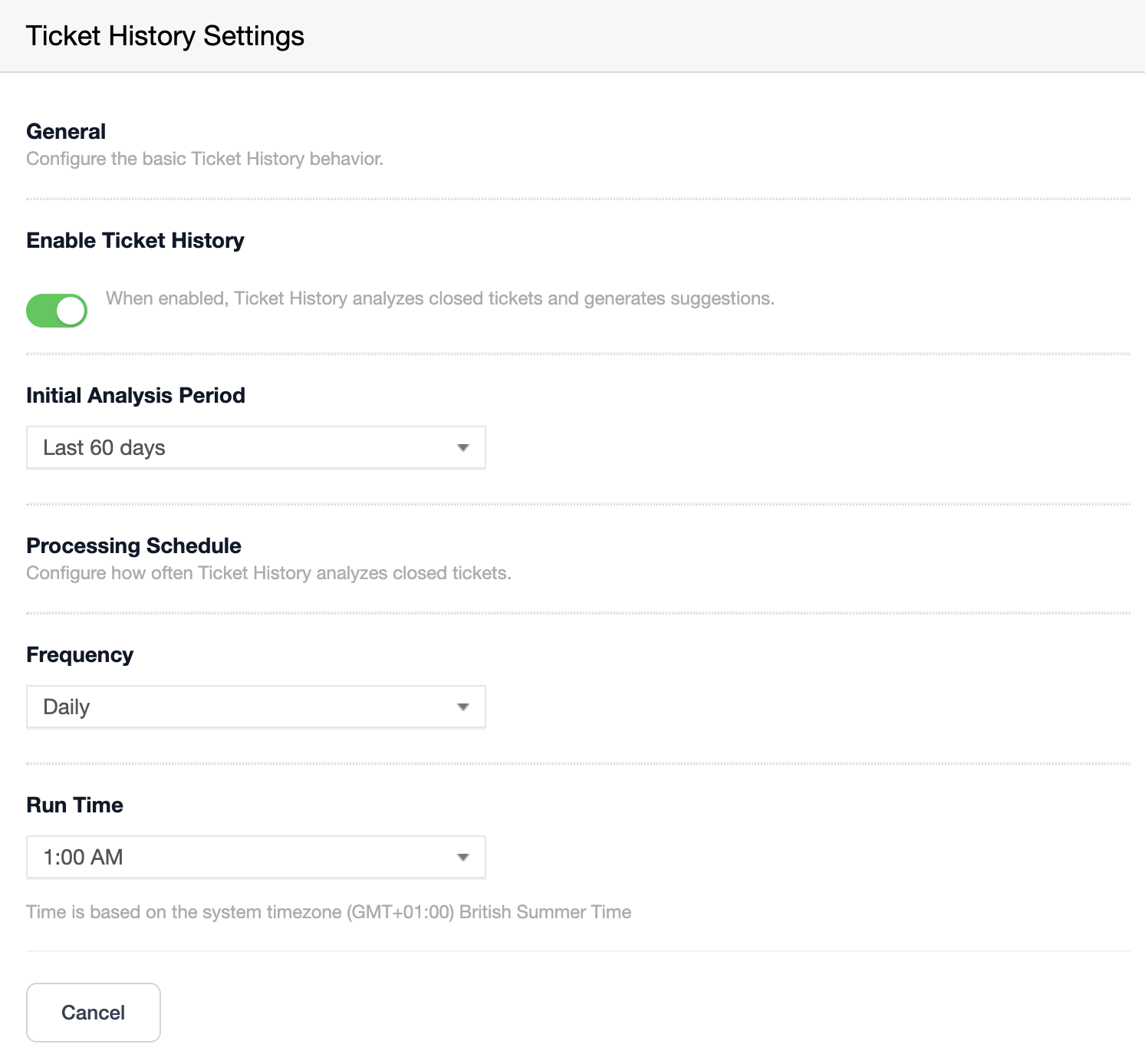
You can adjust the following settings:
- Enable/Disable: Turn AI Ticket History on or off.
- Initial Analysis Period: Choose how far back the tool should analyze tickets during its first run. Select the last 30, 60, or 90 days, or specify a custom period.
- Frequency: Choose how often the analysis runs: daily, weekly, or monthly.
- Run Time: Set the time of day when the analysis should start.
How Tickets Are Selected
AI Ticket History analyzes only tickets in the Completed state at the time of analysis.
To focus on meaningful support conversations and keep token usage manageable, the system filters tickets before processing them. Only tickets that meet the following criteria are included:
- Date range: The ticket was completed within the selected analysis period.
- Minimum number of replies: The ticket contains at least three public replies.
- Agent participation: At least one public comment was posted by an agent.
- Customer message length: At least one customer comment contains more than 50 characters.
- Agent message length: At least one agent comment contains more than 100 characters.
- Comment cleanup: Greetings, closing phrases, and signatures are removed from comments before processing.
These filters help ensure that AI Ticket History analyzes substantive support conversations with enough information to identify recurring topics and potential gaps in your Knowledge Base.
Generate Articles from Tickets
AI Ticket History isn't the only way to create Knowledge Base articles. Sometimes, a single support conversation or even an email written by an agent contains everything you need for a great article.
With UseResponse, you can turn existing support content into a Knowledge Base article in seconds.
How to Create an Article
- Open any ticket containing the information you want to turn into an article.
- Click the AI Article icon.

- Wait for AI to generate the draft.
- Review the draft and make any necessary edits.
Your article is ready to publish!
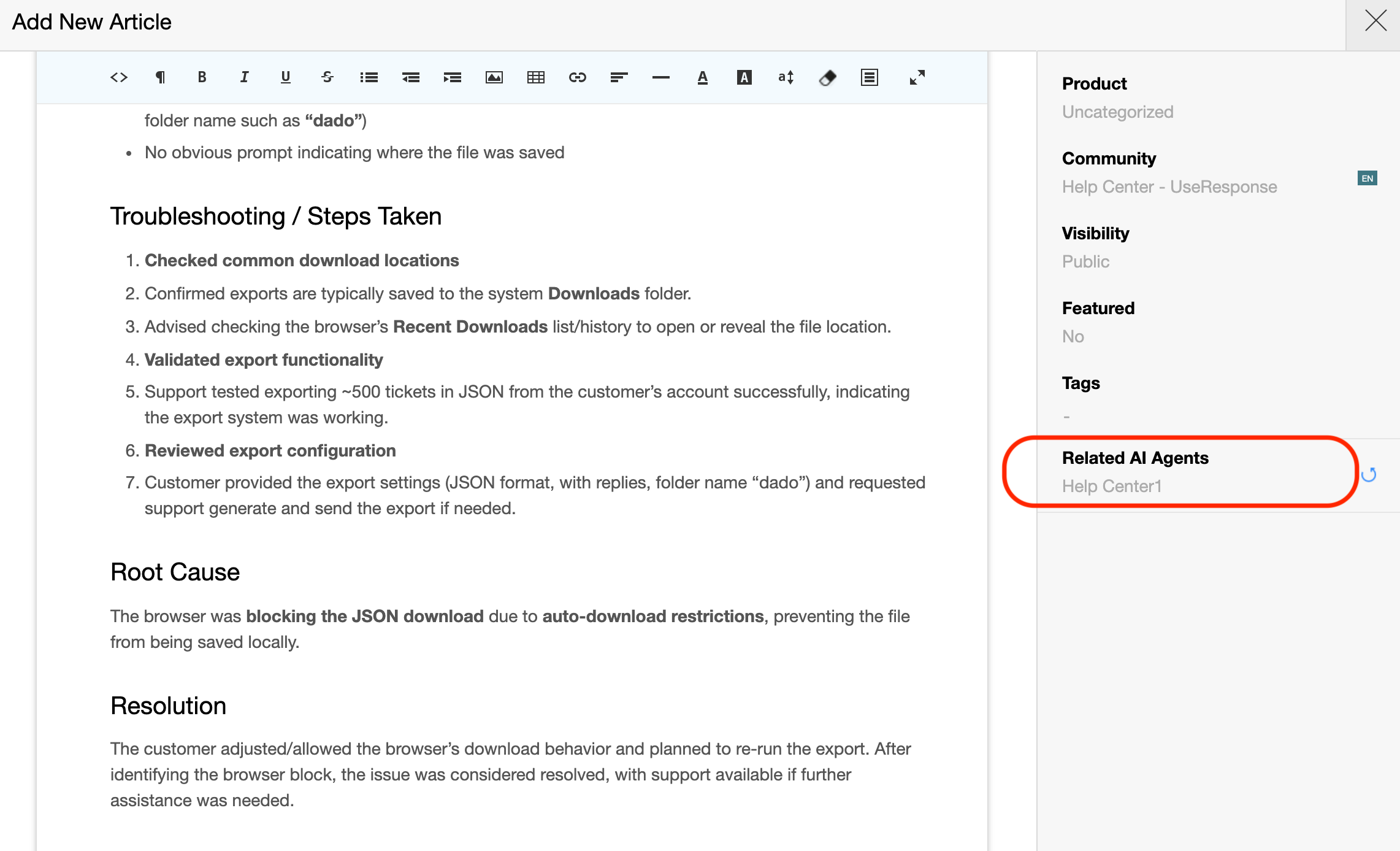
You can also make the article available to your AI tools right away. Simply select the relevant AI Agents in the article settings, and the article will be added to their knowledge sources automatically.